


My starting point: use native dashboards for one ad platform, performance marketing reporting tools for cross-channel visibility, and Optmyzr when you need budget controls. Start with alerts – not automatic changes. Google says conversion reporting can lag 24–48 hours, so recent CPA and ROAS may not tell the whole story.
I’ve grouped these nine tools by use case, not ranked them. Here’s how they compare on monitoring, campaign control, and cost.
Quick Comparison
| Tool | Main use | Campaign control | Pricing |
|---|---|---|---|
| Google Ads Performance Dashboard | Google Ads spend and budget tracking | Alerts and automated rules | Included; ad spend separate |
| Meta Ads Manager | Facebook and Instagram spend tracking | Alerts and automated rules | Free; ad spend separate |
| Supermetrics | Data connections for spreadsheets and dashboards | Alerts; no campaign changes | Varies by destination and plan |
| Whatagraph | Client dashboards and budget alerts | Alerts; no campaign changes | Plan and source-credit pricing |
| Swydo | Agency reporting and spend pacing | Alerts; no campaign changes | From $69/month |
| TapClicks | Centralized data, reporting, and oversight | Confirm actions and permissions | Quote-based |
| Adriel | Cross-channel spend and performance monitoring | Confirm supported actions | From $500/month, billed annually |
| Cometly | Linking ad spend to revenue | Recommendations; confirm execution | Plan and usage pricing |
| Optmyzr | PPC budget monitoring and automation | Approval-based or automated changes | Spend-based subscription |
Before choosing, I’d check data update timing, channel coverage, permissions, and total cost. Then I’d reconcile spend with platform and billing records, check conversion tracking, and test one account with spending caps and change logs.
The rule I’d follow: <u>reconcile first, automate later</u>. An alert is a reason to investigate – not an instruction to pause a campaign.
The 5 Best Ad Reporting Tools for 2026 (Compared by Use Case)
What Automated Ad Spend Monitoring Can and Cannot Do
Spend visibility shows spend, clicks, conversions, CPA, and ROAS by account or campaign, along with currency, time zone, date range, and the last data update. Budget pacing compares actual spend with planned spend to date: actual spend divided by planned spend. The plan should account for campaign dates, weekends, and promotions.
Anomaly detection flags unusual changes against a baseline, but it doesn’t explain what caused them. Check tracking, promotions, and how current the data is before acting. Cross-platform reporting brings channels together, but conversion definitions and attribution windows often differ. Standardize those settings and reconcile sales through a shared CRM or transaction source before treating combined conversions as deduplicated transactions.
Alert-only tools notify you. Approval-based tools suggest changes for review. Fully automated tools carry out predefined changes. Check whether a tool only reports or can also edit campaigns. Google Ads can automate ad status, budgets, and bids. Its rule previews show which entities will be affected before changes go live.[6] Start with notifications, then test limited actions using spend caps and change logs.
Even when reporting settings match, attribution has limits. Attribution assigns credit; it doesn’t prove incremental sales. A credited conversion doesn’t prove the ad caused the sale.[10] Use holdout tests, geo experiments, or lift studies when you need evidence of cause and effect.
Real-time spend data still arrives ahead of conversion data. Google states that conversion reporting may lag by 24–48 hours. Selected conversion windows can also allow conversions to be reported up to 90 days after a click.[3][4] That delay can temporarily inflate reported CPA and lower ROAS.[5] Keep spend alerts separate from conversion-based decisions, label how current the data is, and leave incomplete recent periods out of final performance judgments. Account for these limits when deciding whether a tool should monitor spend, report results, route approvals, or automate changes.
1. Google Ads Performance Dashboard
For Google-only spend monitoring, start with Google Ads’ built-in Overview page and automated rules.
Spend, Reports, and Data Updates
The Overview page summarizes performance for the last 7 days and compares it with the preceding 7 days.[15] Open Campaigns to check cost, clicks, conversions, conversion value, CPA, and budget status. Use Insights and reports to find budget-constrained campaigns and projected monthly spend.
Coverage depends on the report and includes Search, Shopping, Performance Max, Demand Gen, Display, Video, and App campaigns.[9][11][12]
Budget Alerts and Automated Actions
Google Ads automated rules can send alerts or change budgets, bids, ad status, or keyword status.[6][7] For budget monitoring, choose enabled campaigns, enabled and paused campaigns, or selected campaigns. Then set a percentage or fixed-dollar budget adjustment, choose how often the rule runs, and optionally set an upper budget limit for the billing period.[6][7]
Check the settings before activating a rule: campaign status, budget type, bidding strategy, conversion tracking, date range, time zone, and shared-budget scope. Preview the rule first, then check the rules log after it runs.[6][13][16]
Google’s example is an email-only rule that checks whether cost exceeds $50 by 12:00 PM. It sends a notification if the threshold is crossed, but it does not change delivery.[8]
Tracking and Integrations
Check that Google tag or imported conversion tracking works before using CPA or ROAS rules. When lead quality matters, import qualified leads or sales from your CRM.[11]
Pricing, Setup, and Best Fit
Native reporting and rules are included with Google Ads access. Setup happens inside the account, and media spend is separate.[14]
Google Ads is best for teams that run most of their spend on the platform and need monitoring within one account. It does not offer a native cross-network spend view.
2. Meta Ads Manager
For teams spending heavily on Facebook and Instagram, Meta Ads Manager offers built-in spend monitoring and controls for ad delivery.
Spend, Channels, and Data Updates
Meta Ads Manager tracks Facebook and Instagram spend, reach, frequency, clicks, and cost per result. Platform and placement breakdowns show where your budget goes. Delivery status helps you spot rejected ads, limited delivery, exhausted budgets, and end dates.
Reported spend may differ from billing records, so treat billing as the source of truth.[17][20]
Budget Alerts and Automated Actions
Manage budgets through Advantage+ campaign budget or individual ad sets, depending on your setup. Automated rules can send notifications, pause delivery, adjust budgets, or make manual bid changes. Check which conditions and actions your account supports.
Rules run periodically – they don’t stop spending instantly. Pair them with account spending limits.[23][24][26]
Confirm who can create rules or edit budgets, keep each rule’s scope narrow, and review the activity log. Rules work at the ad account level, so one person’s rule can affect another team member’s campaigns.[23]
Tracking and Integrations
Check Meta Pixel and Conversions API events, deduplication, values, and currency. Record each ad set’s attribution setting. Available windows can include 1-day or 7-day click and 1-day view, and your choice can change reported conversion counts.
Compare purchases and qualified leads with your ecommerce records or CRM.[18][19][25]
Pricing, Setup, and Best Fit
Ads Manager is free; ad spend is separate.[20][21][22] It suits teams that need built-in monitoring for Facebook and Instagram spend.
3. Supermetrics
Spend, Channels, and Data Updates
Supermetrics brings paid-media data into Google Sheets, Excel, Looker Studio, BigQuery, and Snowflake.[28][32] It sends spend data to reporting systems – it doesn’t control ad platforms. Use it to reconcile spend in spreadsheets, share dashboards, and work with larger datasets in a warehouse. Update schedules vary by destination and plan, so check whether your setup supports weekly, daily, or hourly updates.[30]
Budget Alerts and Automated Actions
Supermetrics can send alerts through email, Slack, or Microsoft Teams based on updated data. It can’t pause campaigns or change budgets on its own.[33]
Tracking and Integrations
Check that each connector supports the account, campaign, ad set, currency, and metric fields you need. Then compare a sample day or week against ad-platform totals and finance records to check data quality. Also check for update failures, row limits, and history limits.[31][34]
Pricing, Setup, and Best Fit
Pricing depends on the destination, data sources, users, and connected accounts.[27][29] Check the current U.S. checkout price, since package costs vary by destination and volume. Confirm account limits and warehouse access before choosing a plan; plan limits can stop data transfers.[27]
Supermetrics fits teams that need repeatable cross-channel reporting in tools they already use – not campaign control.[28][32]
If you need that same data in client-ready dashboards, the next tools focus on presentation and reporting workflow.
4. Whatagraph
Spend, Channels, and Data Updates
Whatagraph turns spend data into dashboards and alerts for client-facing teams. It brings together Google Ads, Facebook, Instagram, LinkedIn, TikTok, and other connected sources to track spend, clicks, impressions, conversions, cost per click, and ROAS or similar return metrics where supported.
It advertises 60+ integrations and 30-minute data updates, though platform lag can still delay new data.[36][37] Use it to spot pacing issues – not to change campaigns.
Budget Alerts and Automated Actions
Goals & Alerts can flag budget pacing issues by email or Slack, with daily or weekly notifications.[39] The alerts flag problems; they don’t change campaigns.[39][41] Assign someone to check each flagged issue before changing budgets, bids, or campaign status in the native ad platform.
Tracking and Integrations
Check whether your required connectors fall under Essential, Advanced, or Premium. Also verify campaign fields, conversion definitions, and historical coverage.[38][40]
Use shared sources for client dashboards and recurring reports to monitor multiple accounts.[42] Test filters and date ranges before sending the first report.
Pricing, Setup, and Best Fit
If shared reporting matters more to your team than campaign control, focus on pricing and permissions. Pricing depends on plans and source credits, not user seats.[40] Confirm whether your plan includes custom domains, branded email, and client permissions.[43][44][45]
Whatagraph suits agencies and multi-client teams that need cross-channel dashboards, scheduled reports, and budget alerts.
5. Swydo
Spend, Channels, and Data Updates
Swydo puts spend monitoring in one place for agency teams that prioritize reporting. It tracks spend pacing across connected accounts and brings the data into dashboards. Combined Data Sources lets you combine up to five ad platforms in a single widget.[54][56]
For pacing reviews, display the monthly budget, spend to date, percentage used, days elapsed, projected month-end spend, and variance from target. Check each connector’s refresh interval. Some workflows offer hourly updates, but API, attribution, time zone, or date-range delays can still leave data lagging.[51]
Budget Alerts and Automated Actions
Set threshold alerts for delivery by email or Slack.[48]
For example, flag a 15% cost increase.[48]
Monitoring windows cover 1, 7, 30, and 90 days, with the option to pause weekend notifications.[50][51] Swydo monitors only; it does not change bids, pause campaigns, or reallocate budgets.[46][47]
Tracking and Integrations
Connect Google Ads, Meta Ads, and Google Analytics separately. Then compare each source with its platform totals before relying on combined dashboards. Align conversion events, attribution windows, currency, and time zones before combining metrics.[49][52]
Turn on connection-health alerts so a broken feed doesn’t make spending look artificially low.[46] Once you’ve checked the source mapping, review plan limits before rollout.
Pricing, Setup, and Best Fit
Published pricing starts at $69/month, or $62/month billed annually. Both include 10 data sources and unlimited clients, users, dashboards, and reports.[54][55]
Additional data sources cost $4.50 each for sources 11–100, $3.00 each for sources 101–500, and $2.00 each above 500.[54][55]
Swydo suits agencies that want scheduled reports and a client portal alongside spend monitoring.[51][53]
6. TapClicks
TapClicks pairs monitoring with data governance, adding storage, audit trails, and recurring reporting for teams that need both.[61]
Spend, Channels, and Data Updates
TapClicks brings multi-channel data into TapData, with dashboards in SmartAnalytics, branded reports in SmartReports, and presentation-ready reporting in SmartStory.[59][61]
Data updates can run daily or on demand. Check each connector’s update schedule and historical lookback before using it for budget pacing.[60][61] Spend alerts need current, normalized data to work as intended.
Budget Alerts and Automated Actions
TapClicks supports KPI alerts for selected campaigns, channels, metrics, and recipients. Before enabling automated changes, verify module permissions, approval steps, and action logs.[57][62]
Tracking and Integrations
TapClicks advertises more than 250 direct integrations, including Google Ads, Meta, Microsoft Advertising, Google Analytics, and Salesforce.[58][60]
TapData exports processed data to Power BI, BigQuery, and Snowflake. It also includes role-based access, client-level isolation, and audit trails. During procurement, confirm encryption, retention, data residency, SSO, and MFA.[61]
Pricing, Setup, and Best Fit
TapClicks uses quote-based pricing. Public materials list TapDataLite at about $99/month and TapData+ at about $349/month.[63][64] Specify your storage, export, onboarding, and support needs, and get limits and overage fees in writing.[63][64]
TapClicks suits agencies and multi-brand teams that need centralized oversight, persistent data storage, recurring reporting, and configurable alerts.[61] Before rollout, validate account hierarchies, metric mappings, historical imports, duplicate campaigns, and late-arriving data over one full billing or reporting cycle. Complete that check before using budget alerts to act on spend changes.[59][60][61]
7. Adriel
Spend, Channels, and Data Updates
Adriel connects 650+ sources, including Google Ads, Meta, TikTok, LinkedIn, and Amazon.[65][68] Its dashboards help teams compare spend, CPA, ROAS, and spend pacing across channels.
Track planned versus actual spend for each channel – not just the total. Check how often data updates so you know whether alerts are current enough to guide pacing decisions. This lets you review pacing before acting on an alert.
Budget Alerts and Automated Actions
For Adriel’s overspending and underperformance alarms, check which notifications it supports: email, mobile app, or dashboard. Also verify adjustable thresholds, pacing calculations, permission rules, and what each alert can trigger. Does it only notify you, suggest changes, or trigger budget, schedule, bid, or status actions?[66][67][69][70]
Tracking and Integrations
Adriel also imports data from Google Sheets, CSV files, and databases. These connections may need mapping and regular maintenance.[65]
Compare ad-level spend and conversion efficiency using consistent audiences, placements, and attribution windows. Treat these results as supporting signals, not as the basis for spend decisions.
Pricing, Setup, and Best Fit
Adriel’s official pricing lists offerings starting at $500/month and $1,500/month, billed annually.[65] Costs vary based on account count, connectors, and features.[65]
It’s best suited to agencies and larger advertisers that need cross-channel monitoring and alerts in one place.[65] Start with read-only access, reconcile spend with native platform reports, and confirm onboarding costs and action permissions before enabling changes.
8. Cometly
Cometly combines spend monitoring with attribution and server-side tracking for teams that need to connect ad costs to revenue.
Spend, Channels, and Data Updates
Cometly links ad spend to revenue across Meta, Google Ads, TikTok, and LinkedIn.[75][77] Check each connector’s refresh interval: ad platforms, CRMs, and payment systems update on different schedules.[76][77]
You can choose from multiple attribution models and windows, ranging from 1 day to lifetime.[71] Attributed ROAS depends on your chosen model, so it isn’t a direct replacement for the ad platform’s native ROAS.[71]
Budget Alerts and Automated Actions
Cometly’s 90% tier alert tracks usage limits, not ad spend.[73] Its AI can recommend scaling, pausing, or optimizing campaigns. Before relying on it, confirm whether your plan only shows recommendations or can also carry out changes.[75][76]
Before acting on those recommendations, require approval rules, a minimum conversion threshold, and daily limits on budget changes.
Tracking and Integrations
Cometly advertises more than 70 integrations.[72] Its server-side tracking collects browser, server, Stripe, and CRM events, then forwards them through Conversion API connections.[74] This can help reduce tracking gaps caused by browser restrictions, iOS privacy changes, or blocked pixels.
Check consent, event mapping, timestamps, values, currencies, and browser/server deduplication. Then run a test conversion through every connected system.[74] Investigate reconciliation gaps that exceed your documented tolerance.[74]
For example, investigate gaps above 5% if that is your documented tolerance.[74]
Pricing, Setup, and Best Fit
Cometly lists Core and Enterprise plans with monthly or annual billing. Annual billing saves 20%.[73] Before buying, verify the live quote for connected ad accounts, seats, historical-data access, overage treatment, onboarding, and contract terms.[73]
Cometly is best for teams that need to connect ad spend to CRM stages, payment events, and revenue.[71][78] Skip it if you advertise on a single channel and don’t have offline-revenue workflows. Use the comparison below to weigh that added revenue layer against the setup work.
9. Optmyzr
Spend, Channels, and Data Updates
Optmyzr pairs spend alerts with budget control. Its Budget Dashboard tracks target budgets across accounts, campaigns, shared budgets, and portfolios.[80][81] It supports Google Ads and Microsoft Advertising, including Microsoft Search, Shopping, and Display campaigns.[85][89]
Check how often data refreshes before using alerts to make pacing decisions.[88] Optmyzr fits workflows where monitoring needs to lead to controlled changes.
Budget Alerts and Automated Actions
Optmyzr works best when you want spend alerts linked to budget actions. You can set notifications at 50%, 75%, 90%, and 100% of your target.[81][82] Its scripts can adjust budgets or pause spend that exceeds limits.[80] The Rule Engine and audit tools also support bid, keyword, and budget actions.[84][86][90]
Start in recommendation-only mode. Then require approval for budget increases, bid changes, and pauses.[80][84][90]
Tracking and Integrations
Optmyzr also connects to Meta Ads, Amazon Ads, LinkedIn Ads, and Yahoo Japan Ads, though automation support varies by channel.[80][84][87] Notifications can go to email, Slack, or Microsoft Teams.[83]
If your team needs both monitoring and controlled automation, check pricing and account scope.
Pricing, Setup, and Best Fit
Optmyzr uses spend-based subscription tiers. Its recommended tier is based on connected ad spend over the past 30 days.[79] Check the live quote for account scope, billing cycle, features, and overage terms.[79][91]
Before enabling actions, compare a sample week of spend with the native platform’s records.[80][81] Optmyzr is best for agencies and in-house teams handling recurring budget and bidding work.[80][86]
Compare Ad Spend Monitoring Tools
Compare each tool’s monitoring depth, automation level, and cost side by side.
| Tool | Role | Supported channels | Update cadence | Automation level | Pricing | Best fit | Main limitation |
|---|---|---|---|---|---|---|---|
| Google Ads Performance Dashboard | Native spend monitoring | Google Ads | Scheduled rules and alerts.[92][27] | Alert-only or fully automated | Included with account access | Google-focused advertisers | No cross-channel view |
| Meta Ads Manager | Spend and delivery monitoring | Facebook and Instagram | Scheduled rules and alerts.[93] | Alert-only or fully automated | Included with account access | Meta-focused teams | No cross-platform view |
| Supermetrics | Data extraction and reporting | Google, Meta, LinkedIn, TikTok | Weekly to daily refreshes.[95] | Alert-only | From $44/month, billed annually.[95][27] | Teams using spreadsheets or data warehouses | No campaign control |
| Whatagraph | Client-facing dashboards | Google, Meta, LinkedIn, TikTok | Advertised 30-minute updates.[36][37] | Alert-only | Source-credit subscription.[35] | Client-reporting teams | Manual corrective actions |
| Swydo | Blended KPI reporting | Google, Meta, LinkedIn, Microsoft, TikTok | Connector-dependent refreshes.[51] | Alert-only | $69/month; $62/month, billed annually.[54][55] | Multi-client reporting | No campaign control |
| TapClicks | Marketing operations | Coverage varies by package | Daily or on-demand updates.[60][61] | Alert-only; approval-based if supported | Package or custom pricing.[94] | Large agencies | Complex implementation |
| Adriel | Centralized monitoring | Google, Meta, TikTok, LinkedIn, Amazon.[65][68] | Connector-dependent refreshes | Alert-only unless actions are confirmed | From $500/month, billed annually.[65] | Cross-channel teams | Action permissions need confirmation |
| Cometly | Attribution-informed monitoring | Meta, Google, TikTok, LinkedIn.[75][77] | Connector-dependent refreshes.[76][77] | Recommendations; execution unconfirmed | Plan and usage pricing.[96] | Revenue-linked monitoring | Results depend on tracking |
| Optmyzr | PPC monitoring and control | Google, Microsoft, Amazon, Meta, LinkedIn, Yahoo.[79] | Channel-dependent refreshes | Approval-based or fully automated | Spend-based subscription.[50] | Multi-account PPC teams | Automation varies by channel |
Check current pricing, channel coverage, refresh cadence, and supported actions with vendors – especially Whatagraph, TapClicks, Adriel, Cometly, and Optmyzr. Ask TapClicks about add-ons and implementation fees, and request a current quote from Cometly.
Automation labels describe permission levels, not speed. Alert-only tools notify you. Approval-based tools require review before changes go live. Fully automated tools execute the changes you’ve configured.
Daily refreshes don’t provide real-time spend control. Before automating changes, verify data latency and permissions. Compare total cost, not just the subscription: media spend is separate, and connectors, implementation, and notification tools can add to the bill.
Check Data and Set Controls Before Automation
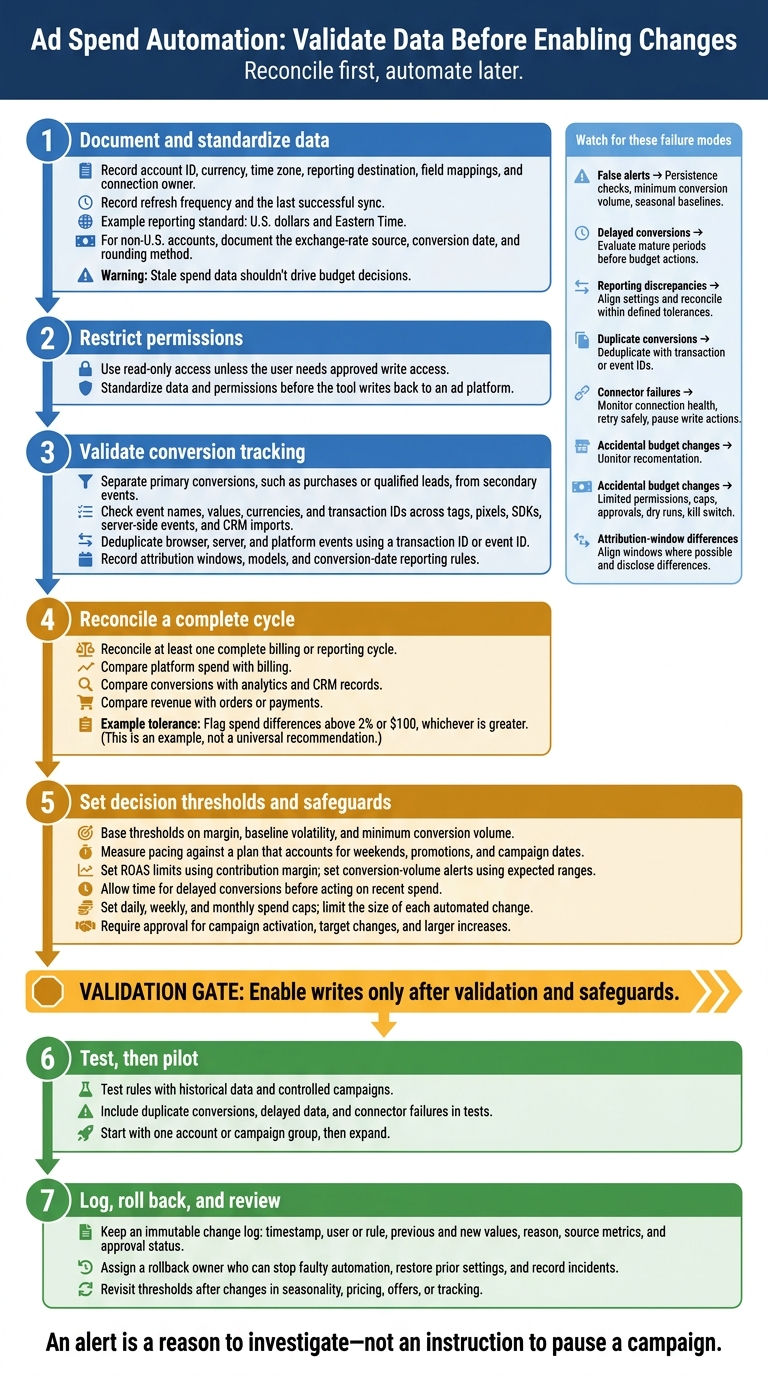
Ad Spend Automation: Validate Data Before Enabling Changes
Before a tool writes back to an ad platform, standardize its data and permissions. Before connecting it, document the account ID, currency, time zone, reporting destination, field mappings, and connection owner. Record how often data refreshes and when the last successful sync occurred. Stale spend data shouldn’t drive budget decisions.
Use read-only access unless the user needs approved write access. Choose one reporting standard, such as U.S. dollars and Eastern Time. For non-U.S. accounts, document the exchange-rate source, conversion date, and rounding method.
Separate primary conversions, such as purchases or qualified leads, from secondary events. Check event names, values, currencies, and transaction IDs across tags, pixels, SDKs, server-side events, and CRM imports. Use a transaction ID or event ID to deduplicate browser, server, and platform events. Record attribution windows, models, and conversion-date reporting rules.
Reconcile at least one complete billing or reporting cycle. Compare platform spend with billing, conversions with analytics and CRM records, and revenue with orders or payments. Use a consistent tolerance when investigating differences.
For example, flag spend differences above 2% or $100, whichever is greater, rather than treating small rounding differences as incidents.
Base thresholds on margin, baseline volatility, and minimum conversion volume. Measure pacing against a plan that accounts for weekends, promotions, and campaign dates. Set ROAS limits using contribution margin, and set conversion-volume alerts using expected ranges. Allow time for delayed conversions before acting on recent spend.
| Risk | Typical cause | Monitoring signal | Recommended control |
|---|---|---|---|
| False alerts | Normal volatility or small samples | Isolated CPA, ROAS, or spend breach | Require persistence checks, minimum conversion volume, and seasonal baselines |
| Delayed conversions | Conversion reporting lag | Recent CPA or ROAS worsens, then backfills | Evaluate mature periods before budget actions |
| Reporting discrepancies | Mismatched reporting settings | Spend or revenue totals do not reconcile | Align settings and reconcile within defined tolerances |
| Duplicate conversions | Repeated events or missing IDs | Conversions or revenue exceed orders | Deduplicate with transaction or event IDs |
| Connector failures | Expired authorization or interrupted feeds | Stale data, missing spend, or unexpected zeros | Monitor connection health, retry safely, and pause write actions |
| Accidental budget changes | Excessive permissions or faulty rules | Unapproved budget or status change | Use limited permissions, caps, approvals, dry runs, and a kill switch |
| Attribution-window differences | Different attribution windows | CPA or ROAS varies despite similar spend | Align windows where possible and disclose differences |
Use these controls to narrow the shortlist in the next section.
Before enabling writes, set daily, weekly, and monthly spend caps and limit the size of each automated change. Require approval for campaign activation, target changes, and larger increases.
Test rules with historical data and controlled campaigns. Include tests for duplicate conversions, delayed data, and connector failures. Start with one account or campaign group, then expand.
Keep an immutable change log with the timestamp, user or rule, previous and new values, reason, source metrics, and approval status. Assign a rollback owner who can stop faulty automation, restore prior settings, and record incidents. Revisit thresholds after changes in seasonality, pricing, offers, or tracking.
Choose a Tool That Fits Your Workflow
Choose a tool based on the workflow you need. Match it to the actions you want: alerts, approvals, or automated changes. Optmyzr fits approval-based paid-search automation. Check what’s included in the plan you’d buy – a reporting connection doesn’t necessarily let you change budgets.
Test the setup in one account before rolling it out to others.[1]
If you have tracking gaps or need CRM reconciliation, Growth-onomics can audit your setup before you automate budget changes.[1]
Conclusion: Validate Data Before Automating Changes
After comparing features and pricing, narrow your shortlist by how current the data is, permissions, and total cost. These are the last checks before automating safely. Confirm current pricing, connector fees, automation fees, and user limits with each vendor.[101]
Before acting on alerts, check the data behind them: reconcile first, automate later.[99]
Once the data passes those checks, move from alert-only monitoring to changes that require approval. Allow for reporting delays and apply the controls described above before enabling writes.[97][98][100] Automate only after validation.
FAQs
How do I calculate my break-even ROAS?
Your break-even return on ad spend (ROAS) is the point where revenue from ads exactly covers all associated costs.
Standard ROAS divides revenue from ads by ad spend. Break-even analysis also accounts for expenses such as administrative fees, vendor charges, and subscription costs [1].
Growth-onomics uses data analytics to help businesses refine these metrics and improve performance.
How can I prevent conflicting automation rules?
Set a clear hierarchy of control. Don’t run multiple optimization layers at the same time. Assign one primary system to each decision, and document which platform handles each action [1].
Use rules for hard safety limits, such as spend caps and brand exclusions, and agents for optimization [1]. Review rules quarterly so thresholds stay aligned with seasonality and market conditions. Keep an audit trail of automated changes to spot and resolve conflicts quickly [1].
When is paid spend monitoring worth the cost?
Paid spend monitoring is worth the cost when even short lapses waste budget and weekly or monthly reports arrive too late. That’s especially true when you run 10+ campaigns or spend more than $10,000 per month [2].
Real-time tools should pull data at least daily, track budget pacing, send automated overspend alerts, and connect with billing so you can act on the numbers. Without these features, you risk wasting up to 26% of your budget, plus further losses from putting money in the wrong places [1].