


If I want to fix drop-offs in a mobile app, session replay is one of the first tools I’d use. It shows why people get stuck in onboarding, checkout, upgrades, and support flows by rebuilding taps, swipes, scrolls, and screen changes into a replay.
Here’s the short version:
- It is not a video. It rebuilds user actions from app event data.
- It helps me spot friction fast. I can review failed checkouts, signup exits, form errors, and bug paths.
- It works best when I start small. I’d begin with onboarding, purchase flows, and support cases.
- Privacy comes first. I need masking, screen exclusion, TLS, encryption at rest, role-based access, and data deletion rules like 30 to 90 days.
- Full-session logging is rarely the right move. A common starting point is 10% to 20% of general traffic, plus 100% for high-value events like
checkout_startedorpurchase_failed. - The goal is action, not watching replays. I need a weekly review, 10 to 20 sessions per topic, and each issue tied to one KPI like conversion rate or 7-day retention.
- Performance matters. I should watch frame rate, launch time, memory use, battery load, and crash rate before expanding rollout.
In plain English: I’d use session replay to connect metrics to user behavior, fix one funnel problem at a time, and keep data handling tight from day one.
This guide walks through where replay helps most, how to set it up on iOS and Android, how to sample traffic, and how to turn session reviews into product fixes that I can measure.
Mobile Session Recording: The Complete Guide 2026
Where Session Recording Delivers the Most Value
Session replay pays off most when you use it on journeys where friction hits hard: onboarding, monetization, and support. In plain English, start with the paths tied to first value, purchase, and support load.
Improve Onboarding, Activation, and Feature Discovery
Filter for new users in their first 24 hours after sign-up or install, then review a sample of 20–50 sessions each week. Watch for confusing tutorials, missed CTAs, setup blockers, and screens where users drop off before they reach first value.
Say recordings show users skipping profile completion because the form looks optional. That gives you a clear hypothesis to test. You might shorten the form, change the order, or make the step feel more required, then track the effect on tutorial completion rate, account creation rate, and day 1, day 3, or day 7 retention. Even a small gain in early retention can make CAC work harder for you. Those patterns also help you decide which screens deserve more sampling and which events need a closer look.
Find Checkout, Upgrade, and Form Friction That Hurts Revenue
Pull sessions where users reached checkout or an upgrade screen but didn’t convert, then review a sample. Look for signals like rage taps on buttons that seem unresponsive, dead taps on elements that appear clickable, repeated backtracking between form steps, and validation errors or retries around addresses, ZIP codes, or card numbers.
A small checkout fix can win back meaningful lost revenue. Upgrade flows work the same way. If users hesitate on a pricing comparison screen or get stuck on a promo code field, that can point to copy or layout changes worth testing. Those same patterns should shape which sessions you review next and which fixes move to the front of the line.
Support Debugging, Customer Success, and Journey Analysis
Bug reports are often thin on detail. Session replay gives engineers and support teams direct visual context, including the interaction sequence, device model, OS version, app version, and network state right before the issue happened. That context can cut investigation time for crashes, broken layouts, and navigation loops.
Support teams get a lot from this too. When an agent attaches a session replay link to a ticket, the engineer can see exactly what the user was trying to do – upgrade a plan, apply a coupon, connect a bank account – without so much back-and-forth. Replays across milestones like onboarding, first value, purchase, and post-purchase also help teams spot where users drop off, loop, or recover. Those findings should shape what you sample, tag, and track in the next setup phase.
How to Set Up Mobile App Session Recording
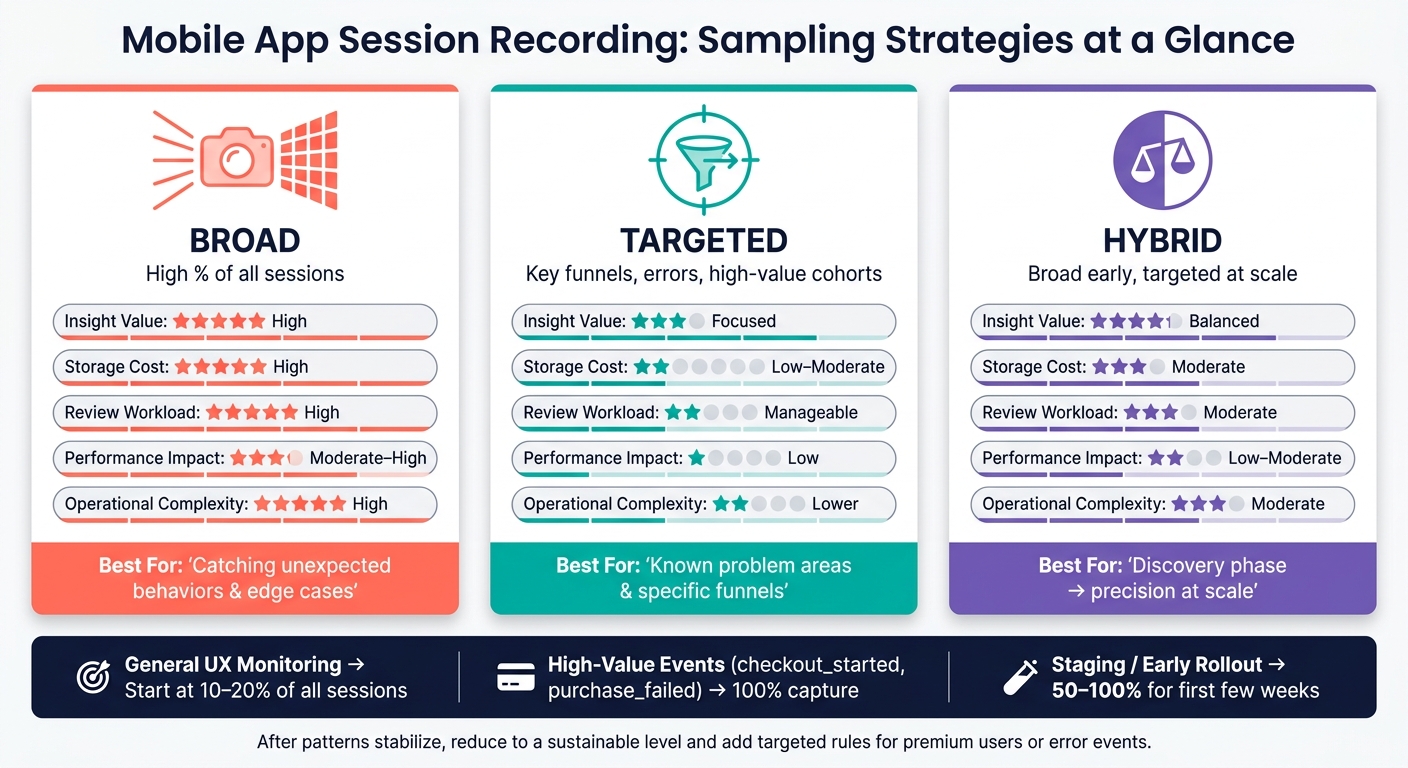
Mobile App Session Recording: Sampling Strategies Compared
Roll out session recording in stages. That helps you avoid messy data, privacy misses, and app performance problems. A smart first step is to limit your rollout to the onboarding, checkout, and support flows listed earlier.
SDK Setup, Event Planning, and Analytics Integration
Most mobile implementations look pretty similar.
On iOS, teams usually install the SDK with Swift Package Manager or CocoaPods. Then they initialize it at app startup in application(_:didFinishLaunchingWithOptions:) using the API key and environment, such as production or staging. On Android, teams usually add the SDK in build.gradle and initialize it in the Application class.
Before launch, set up masking and screen exclusions for sensitive fields and PII. Do this at the start – not after the tool is already live.
It also helps to map your most important journeys before rollout. Think sign-up, checkout, and subscription upgrade. For each one, assign a small and consistent event set. Only track the properties you’ll need later when filtering sessions, such as cart_value and experiment_variant. That setup makes it simple to find sessions where checkout_started fired but checkout_completed did not.
Next, attach a session URL or session ID to your analytics events. That gives teams a direct path from a funnel or cohort to the matching replay. If you pass that replay link through your analytics stack, product, growth, and support teams can jump from a metric straight into the exact session without digging around by hand.
Once the SDK, masking, and event IDs are set, the next call is how much production traffic you want to record.
How to Choose a Session Recording Tool for Your Business
Pick the tool based on the work you need it to handle. Product and growth teams usually focus on UX and event analytics. Engineering teams, on the other hand, often want replay connected to performance data and error traces.
| Criteria | What to Look For |
|---|---|
| Supported platforms | Native iOS and Android support, plus cross-platform or modern UI frameworks if your app uses them |
| Capture method | View hierarchy reconstruction or interaction/performance data, depending on the level of detail you need |
| Analytics features | Funnels, segments, cohorts, error analytics, and replay search |
| Privacy controls | Field masking, PII redaction, and secure screen exclusion |
| Retention | Configurable retention windows and environment-specific rules |
| Integrations | Analytics, CDPs, and observability tools that let you jump from a metric to a replay |
After you choose a tool, define your sampling rules before you expand recording in production.
Sampling Strategies: Broad Coverage vs. Targeted Capture
Recording 100% of production sessions forever is usually a bad tradeoff. Broad capture makes sense in some cases, but only when the insight is worth the cost.
| Strategy | Insight Value | Storage Cost | Review Workload | Performance Impact | Operational Complexity |
|---|---|---|---|---|---|
| Broad (high % of all sessions) | High – catches unexpected behaviors and edge cases | High | High | Moderate to high | High – requires strong privacy controls and retention rules |
| Targeted (key funnels, errors, high-value cohorts) | Focused – best for known problem areas | Low to moderate | Manageable | Low | Lower – fewer sessions, simpler compliance |
| Hybrid (broad early, targeted at scale) | Balanced – broad discovery phase, then precision | Moderate | Moderate | Low to moderate | Moderate – requires tuning over time |
For many U.S. consumer apps, a practical starting point is 10–20% of all sessions for general UX monitoring. Then use 100% capture for sessions tied to key events like checkout_started, purchase_failed, subscription_upgrade_attempt, or high cart values such as cart_value >= $100.00.
During the first rollout, it often makes sense to run 50–100% sampling in staging and in a limited production cohort for the first few weeks. After patterns settle down, reduce sampling to a level your team can keep up with. Then add targeted rules – for example, recording all sessions for premium subscribers or all sessions where an error fires. That gives you solid visibility without letting storage costs get out of hand.
Once sampling is live, use those same replay links and event filters to review sessions, tag issues, and connect them back to KPI changes. With capture and sampling set, replay review becomes much easier to turn into action.
sbb-itb-2ec70df
How to Turn Recordings Into Actionable Growth Insights
Replay helps when you tie it to one funnel question at a time. That’s the key. With sampling and filters already set, use recordings to answer a single question, then turn what you find into one clear change with a measurable result. Replay tells you why users drop off, not just where they leave.
Focus on Critical Journeys and Filter the Right Sessions
Start with the funnel step that has the biggest drop-off. In most cases, that means looking first at sign-up, onboarding, checkout, upgrade, and core feature flows. These journeys connect straight to acquisition, activation, and revenue.
Then narrow the sessions down with filters. You want the group most likely to explain the drop-off, not a random mix of visits. Useful filters include:
- Drop-off event
- Device type and OS
- Session length
Short sessions can point to crashes or hard blockers. Long sessions on a simple form usually point to friction. You can narrow things even more with a cohort filter, like new U.S. users on iOS from a paid campaign. That keeps the review tied to the growth goal in front of you.
Once that’s in place, set up a scheduled review so the work leads to action instead of one-off notes.
Build a Repeatable Review and Issue-Tracking Workflow
Run a weekly 60–90 minute review with 2–4 people from product, design, and engineering. Before the meeting, have one person pre-filter 10–20 recordings tied to that week’s focus area, such as onboarding completion or checkout conversion.
During the review, watch sessions at increased speed, call out recurring friction, and note how often the same pattern shows up. One session is an anecdote. Repeated sessions are a signal.
Log each issue in your tracker with the user action, hypothesis, target metric, owner, and due date. That tight format keeps issues from sitting in the backlog. It also helps the team stay honest about follow-through. A good rule is to address 3–5 items per sprint instead of letting the list pile up.
Connect Replay Findings to KPIs and Experiments
Every issue should connect to one KPI. That could be checkout step completion rate, 7-day retention, upgrade conversion, or time on step. When the link is clear, it’s much easier to tell whether the fix did its job after release.
Here’s the flow:
- Identify friction
- Log it
- Attach a KPI
- Ship a fix
- Review sessions from the same segment again
- Measure the metric
After you ship a fix, go back to recordings from that same segment and check that the friction is gone. Don’t stop at a metric change alone. Numbers can move for a lot of reasons, but replay lets you see whether the actual problem disappeared.
After the fix is confirmed, review privacy and performance settings before expanding capture.
Privacy, Performance, and Responsible Use of Session Recording
After you build a review workflow, privacy and performance controls are what keep session replay usable as you scale. If you skip them early, replay can get harder to trust and harder to run well once capture expands.
Protect Sensitive Data and Meet U.S. Privacy Requirements
Before you collect more sessions, put privacy controls in place. In the U.S., that usually means CCPA/CPRA, HIPAA, and PCI DSS. If your app also serves EU users, add GDPR to the picture.
A simple rule helps here: mask by default. Hide text, inputs, and sensitive screens unless a field has been clearly approved for capture. That lowers risk without making replay useless.
You also need the basics locked down:
- Send replay data over TLS
- Store it encrypted at rest
- Use role-based access for approved product, engineering, support, and research users
- Set automatic deletion or anonymization after a defined window, usually 30–90 days
Your privacy policy should spell this out in plain English. Say what session recording captures, why you collect it, and how sensitive inputs are handled. If that language is vague, teams can drift into risky territory without meaning to.
Reduce Mobile Performance Impact Through Careful Configuration
Once data handling is safe, make sure replay isn’t dragging down the app. Session replay adds network, CPU, memory, and battery load. That pressure tends to show up fastest on older devices or when network conditions are poor.
The safest move is to start small. Turn on limited capture for one or two high-value journeys first, then watch the app closely. Track frame rate, app launch time, memory usage, and crash rates. If those stay stable, expand from there.
This matters because replay data is only helpful if the app still feels smooth. If recording starts to hurt performance, you’re trading one problem for another.
Conclusion: Start Small, Measure Impact, and Scale What Works
Session replay tends to work best when privacy, performance, and KPI review stay closely linked. Roll it out with discipline, measure the impact of each fix, and expand only what the data supports.
FAQs
How do I know which sessions to record first?
Start with funnel analysis to find the exact steps where users drop off. Focus on recordings from high-friction parts of the journey, like checkout pages or sign-up flows, where people backtrack, hesitate, or leave out of nowhere.
It also helps to set clear, measurable goals from the start. Think cart abandonment, ignored call-to-action buttons, or exits on a form step. That keeps you from getting buried in data that doesn’t help.
Then bring the two together: use funnel data to spot where completion breaks down, and session replays to see why it happens. That’s often where design problems, broken elements, or confusing page behavior show up.
Can session recording slow down my app?
Yes, it can affect app performance if it’s not set up carefully.
Here’s why: session recording gathers detailed user interaction data, then sends that data out for processing. If the SDK is heavy or the tracking is inefficient, your app can slow down. And in an app, even small delays can feel annoying fast.
The good news is that you can cut that impact down. Use a lightweight SDK, and fine-tune tracking for high-frequency events with methods like throttling or debouncing. That way, the app stays fast and responsive while you still collect useful user behavior data.
How do I keep session recordings privacy-safe?
Use tools with built-in data anonymization and consent management to help meet GDPR and CCPA rules. Most platforms also mask sensitive details, like passwords and credit card numbers.
Only deploy tracking scripts after users give explicit consent. On top of that, keep clear data-processing records, use encryption and access controls, and run regular audits to keep stored data secure and anonymous.