


Google Analytics 4 (GA4) is designed to track users across devices, giving you a clearer view of how people interact with your site or app. Here’s how it works:
- User-ID Tracking: Links activity across devices for logged-in users using unique identifiers.
- Google Signals: Tracks users signed into Google accounts with Ads Personalization enabled, adding cross-device insights.
- Device ID: Tracks activity on individual devices for anonymous users, but it doesn’t connect across devices.
To set this up:
- Enable User-ID tracking for precise insights.
- Turn on Google Signals for added data on signed-in users.
- Configure your Reporting Identity (Blended or Observed) for optimal data unification.
Once configured, use GA4’s Explore tools to analyze device overlap, sequential usage, and customer paths. This helps you understand how users switch between smartphones, tablets, and desktops during their journey. Proper setup ensures accurate data, reduces duplication, and highlights which channels drive conversions.
Google Analytics – GA4 – Cross Platform Tracking – What is it?
How GA4 Connects User Activity Across Devices
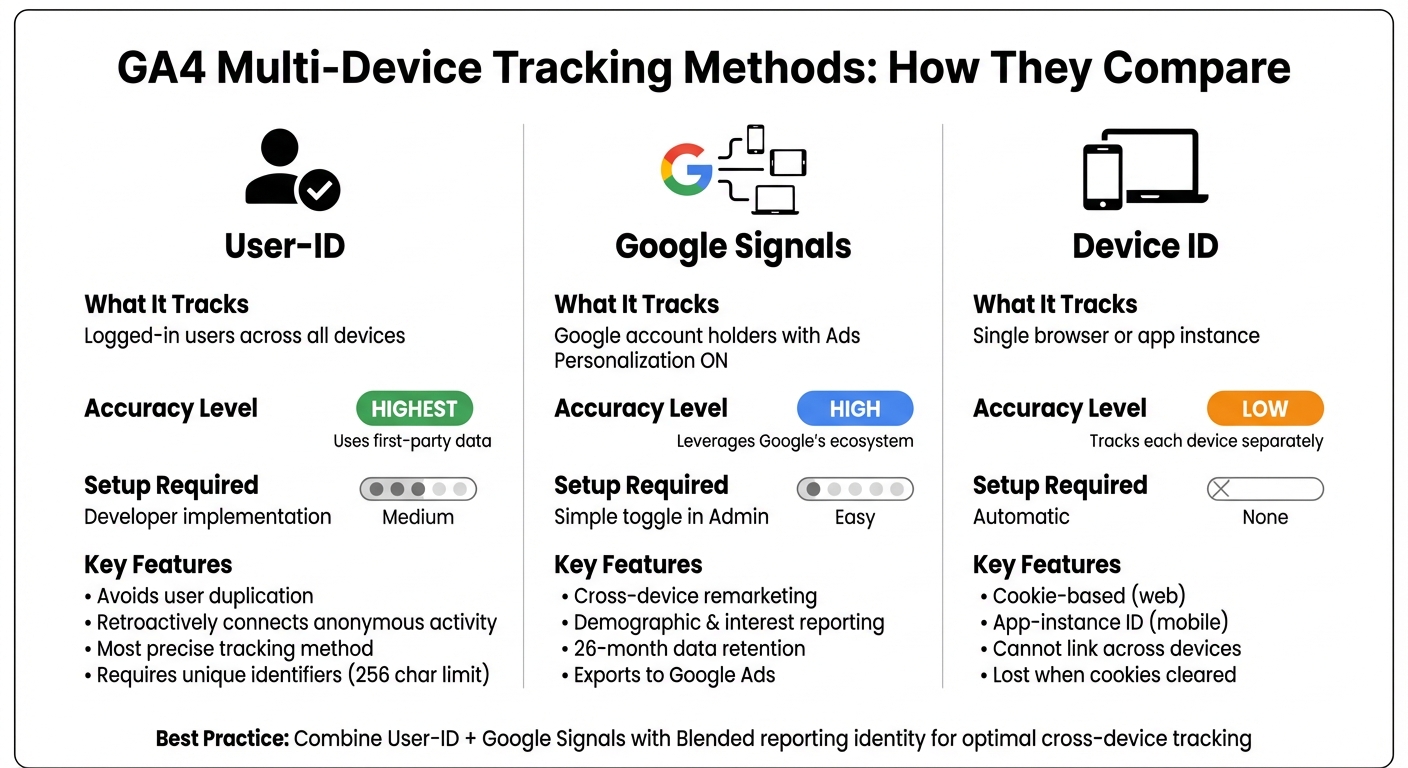
GA4 Multi-Device Tracking Methods Comparison: User-ID vs Google Signals vs Device ID
Google Analytics 4 (GA4) links user activity across devices using three key methods, each contributing to a broader understanding of user behavior. These methods work together to provide a cohesive picture of how users interact with your website or app.
Setting Up User-ID Tracking
The User-ID method is GA4’s most precise tracking tool because it utilizes your first-party data to identify users. When someone logs into your site or app, GA4 assigns them a unique identifier that tracks their activity across devices and sessions.
"User-ID is the most accurate identity space, because it uses data you collect to identify your users." – Google Analytics Help
One major benefit of User-ID tracking is its ability to avoid duplication. Instead of counting the same person as multiple users when they use different devices, GA4 consolidates their activity under one profile. This ensures more accurate metrics and eliminates inflated user counts.
If an anonymous visitor later logs in, GA4 can retroactively connect their earlier activity to their User-ID. To activate this feature, set your reporting identity to either Blended or Observed.
Important User-ID Guidelines:
- Avoid using personally identifiable information (like email addresses or names) as User-IDs. Instead, use internal system IDs or hashed values.
- Keep User-IDs within a 256-character limit.
- When users log out, set the User-ID to null to prevent misattribution of future activity.
Enabling Google Signals
Google Signals builds on User-ID tracking by capturing data from users signed into their Google accounts. This method tracks users who have enabled Ads Personalization, even if they haven’t logged into your website or app.
"When users turn on Ads Personalization, Google is able to develop a holistic view of how those users interact with an online property from multiple browsers and multiple devices." – Google Help
To enable Google Signals, navigate to Admin > Data Collection and toggle it on. By default, the data collected will expire after 26 months. Beyond cross-device tracking, Google Signals unlocks additional features, such as:
- Cross-device remarketing
- Demographic and interest reporting
- Exporting key events to Google Ads for better ad targeting
It’s worth noting that GA4 uses data thresholds to protect user privacy, especially when dealing with smaller user counts.
How Device ID Works for Anonymous Visitors
For users who don’t log in or aren’t signed into their Google accounts, GA4 relies on the Device ID for tracking. On websites, this identifier is the Client ID stored in first-party cookies, while on mobile apps, it’s derived from the app-instance ID.
While Device ID provides basic tracking, it’s limited to a single device. It cannot link user activity across multiple devices, and the connection is lost if a visitor clears their cookies or uses an incognito session.
| Method | What It Tracks | Accuracy Level | Setup Required |
|---|---|---|---|
| User-ID | Logged-in users across all devices | Highest (uses first-party data) | Developer implementation |
| Google Signals | Google account holders with Ads Personalization ON | High (leverages Google’s ecosystem) | Simple toggle in Admin |
| Device ID | Single browser or app instance | Low (tracks each device separately) | Automatic |
Configuring GA4 for Multi-Device Tracking
Setting up GA4 to track users across multiple devices involves enabling specific features and deciding how you want the data to be processed. Each step is essential to ensure accurate tracking and reporting.
How to Enable User-ID in GA4
To track logged-in users across devices, you’ll need to create unique, persistent, and non-personally identifiable identifiers within your system – like those from a CRM or database – and share them with GA4. These identifiers can be internal database keys or hashed values, but they must not exceed 256 characters.
In Google Tag Manager (GTM), set up a Data Layer Variable for user_id using your website’s data layer. Then, in your GA4 Configuration tag, add a field under "Fields to Set" with the name user_id and assign it the value from the variable. If you’re using gtag.js, include the user_id parameter in the configuration command on every page, like this:
gtag('config', 'TAG_ID', {'user_id': 'USER_ID'}); To confirm everything is working, go to Admin > DebugView in GA4 and check that the user_id property appears under "User Properties" for logged-in sessions.
Once User-ID is set up, you can enhance cross-device tracking further by enabling Google Signals.
Turning On Google Signals
To activate Google Signals, navigate to Admin > Data Settings > Data Collection and toggle "Enable Google signals data collection" to "On." You’ll need Editor-level permissions or higher to make this change.
Google Signals gathers data from users who are signed into their Google accounts and have Ads Personalization enabled. This data is retained for 26 months by default and applies only to data collected after activation – it won’t affect historical data. Additionally, you can adjust regional settings to comply with privacy laws like GDPR by using the settings icon in the data collection section.
Selecting Your Reporting Identity Method
After enabling User-ID and Google Signals, configure how GA4 consolidates user data by choosing a reporting identity method. Go to Admin > Reporting Identity, where you’ll find three options:
- Blended: Combines User-ID, Google Signals, Device ID, and behavioral modeling to fill gaps. This approach provides the most detailed view of user behavior.
- Observed: Similar to Blended but excludes modeled data, focusing only on directly observed behavior for higher accuracy.
- Device-based: Relies solely on Device ID. This is useful if you want to avoid data thresholding or haven’t implemented User-ID or Google Signals.
Your choice doesn’t lock in how data is collected or processed, and you can switch between options at any time. For robust multi-device tracking, either Blended or Observed is recommended if User-ID is enabled. If you notice data thresholds in your reports – common when using Google Signals with smaller user volumes – temporarily switching to Device-based can provide raw counts, though it may fragment multi-device journeys. If the Device-based option isn’t visible, click "Show all" at the bottom of the Reporting Identity screen to reveal it.
sbb-itb-2ec70df
Reading Multi-Device Data in GA4
After setting up GA4 for tracking users across multiple devices, the next challenge is understanding how customers interact as they switch between devices. GA4’s Explore section is your go-to tool for this, offering features that help you dive deep into multi-device behavior. However, you’ll need to create custom reports since standard reports don’t include device overlap data.
Reading the Device Overlap Report
The Device Overlap report highlights which combinations of devices your customers commonly use. This report isn’t pre-built, so you’ll need to create it using the Segment Overlap template. Here’s how:
- Go to Explore and choose Segment Overlap.
- Create three segments based on Device Category: Desktop, Mobile, and Tablet.
- Drag these segments into the Segment Comparisons area to produce a Venn diagram. This diagram illustrates how users interact with your site across multiple devices.
Keep in mind, overlap data becomes more reliable after 30 days. However, if your query involves more than 10 million events, sampling might occur. A helpful tip: you can right-click on any section of the Venn diagram to create a new segment focusing on that specific multi-device overlap.
Once you’ve analyzed the overlap, you can dig deeper into sequential device usage with Path Exploration.
Mapping Customer Paths by Device Type
Using the insights from the overlap report, you can explore how customers move between devices during their journey. The Path Exploration tool is perfect for this. It helps you visualize the order in which devices are used leading up to a conversion.
To get started, open Path Exploration from the Explore menu. Then, define a starting or ending point, such as a landing page or a "purchase" event. Add Device Category to the breakdown to see which devices are used at each step.
This approach uncovers patterns like users browsing on mobile during lunch breaks but completing purchases on desktop later in the day. As Loves Data explains:
"GA4’s event-based tracking model and cross-device capabilities provide a detailed view of how people interact with your website or app over time".
Analyzing these patterns can guide device-specific UX improvements. Additionally, combining this with user-based insights through User-ID tracking allows you to see the entire journey of an individual across all touchpoints.
Creating Segments for Device Analysis
Custom segments are a powerful way to focus on specific device usage patterns. In the Explore module, use the Segment Builder to create a User Segment. Set the scope to "Across all sessions" to merge interactions across devices.
For more advanced analysis, use the Sequence option in the Segment Builder to identify common device transitions, such as switching from mobile to desktop. Set the condition evaluation to "At any point" to include users who matched the criteria at any time during the analysis period, even if their last interaction was on a different device.
GA4 lets you create up to 10 segments per exploration and save up to 50 segments per standard property (200 for GA4 360). This provides plenty of flexibility to test and refine your analysis of device behavior patterns.
Conclusion
Key Takeaways
Tracking across multiple devices is no longer optional – it’s essential. Consider this: 60% of users start shopping on one device and complete their purchase on another. With GA4’s event-based architecture, you can unify web and app data into a single property, offering a complete view of your customer’s journey instead of fragmented session data.
Accurate tracking relies on four identity spaces:
- User-ID, ideal for logged-in users and offering the highest precision.
- Google Signals, which taps into Google account data.
- Device ID, based on cookies for device-specific tracking.
- Behavioral Modeling, which uses AI to fill in gaps when users decline consent.
Your reporting identity method determines how these spaces work together. For maximum accuracy, Blended combines all four. Observed excludes AI modeling, while Device-based sticks solely to cookies.
To get the most out of GA4, activate Google Signals and set up a custom user_id parameter. Then dive into GA4’s Explore section to uncover critical insights. Analyze device overlap patterns, map sequential device usage with Path Exploration, and create custom segments to understand how users move between smartphones, tablets, and desktops. While these steps can seem complex, expert support can make all the difference.
How Growth-onomics Can Support Your Goals

Turning insights into growth requires more than just data collection – it demands the right expertise. Growth-onomics specializes in GA4 implementation, ensuring configurations like User-ID and Google Signals are set up correctly to provide actionable customer journey data. As Miltos George, Chief Growth Officer at Growth-onomics, puts it:
"Sustainable growth stems from more than just data collection".
With over 15 years of experience across high-growth industries like fintech, iGaming, and SaaS, Growth-onomics applies a proven five-step methodology. This approach starts with detailed funnel analysis and progresses through A/B testing and performance-based optimization. Their expertise in Customer Journey Mapping, UX, and Data Analytics transforms GA4 insights into real, measurable growth. Instead of focusing solely on collecting data, Growth-onomics builds systems that enhance retention and boost revenue across every device your customers use.
FAQs
How does GA4 improve tracking accuracy across multiple devices?
Google Analytics 4 (GA4) leverages User-ID tracking to deliver a clearer picture of customer behavior across multiple devices. By assigning a unique and consistent identifier to each signed-in user, GA4 consolidates all their activity – whether it happens on a smartphone, tablet, desktop, or app – into one cohesive profile.
This approach eliminates duplicate data caused by users switching devices, giving you a seamless view of cross-device interactions. With this unified perspective, you can better understand customer journeys and make more informed, data-backed decisions.
What are the advantages of using Google Signals in GA4?
Enabling Google Signals in GA4 provides a deeper understanding of how your audience interacts across different devices. It helps to deduplicate users, offering a clearer and more accurate view of customer journeys. Plus, it opens up access to demographic details like age, gender, and interests, which can help you refine your marketing strategies.
Another advantage of Google Signals is its support for cross-device remarketing in Google Ads. This means you can reconnect with your audience more effectively, regardless of the device they’re using. By enhancing identity resolution, it also improves cross-device reporting, giving you a more detailed picture of user behavior and engagement with your brand.
How do I set up GA4 to track customer journeys across multiple devices?
To monitor customer journeys across multiple devices in Google Analytics 4 (GA4), start by setting up a GA4 property to collect data from all devices. Implement User-ID tracking by assigning a unique identifier to each logged-in user and passing it to GA4 through the Global Site Tag or Google Tag Manager. This allows GA4 to link sessions from various devices into a single user profile.
Next, enable Google Signals in the admin panel. This feature extends tracking capabilities for users logged into their Google accounts. Under Data Settings, choose the Blended Reporting Identity option to merge User-ID and Google Signals data, providing a more complete view of user behavior. If your setup involves multiple domains, configure cross-domain tracking to ensure all interactions are consolidated under the same user.
Leverage GA4’s built-in tools, such as the Cross-Device Overlap and User Explorer reports, to dive into how users engage with your content across devices. Be sure to comply with privacy laws like GDPR or CCPA by obtaining user consent and enabling IP anonymization. Following these steps will give you deeper insights into multi-device customer journeys, helping you refine their experience.