


Debug reports are essential for troubleshooting Attribution APIs, which track ad-driven conversions while ensuring user privacy. These reports provide real-time insights into why attribution reports succeed or fail, helping you resolve issues like header errors or missing data. There are two types:
- Success Debug Reports: Confirm successful report generation. Available since Chrome 101 (April 2022).
- Verbose Debug Reports: Identify specific errors, like "trigger-no-matching-source." Introduced in Chrome 109 (January 2023).
To set up debug reporting:
- Verify API support with
document.featurePolicy.allowsFeature('attribution-reporting'). - Enable browser debugging via
chrome://attribution-internals. - Configure cookies (
ar_debug=1) and headers for debug keys. - Set up server endpoints for success (
/debug/report-event-attribution) and verbose (/debug/verbose) reports.
Testing includes simulating conversions to verify reports. Use these tools and configurations to ensure accurate campaign tracking and resolve discrepancies between API and legacy cookie-based systems.
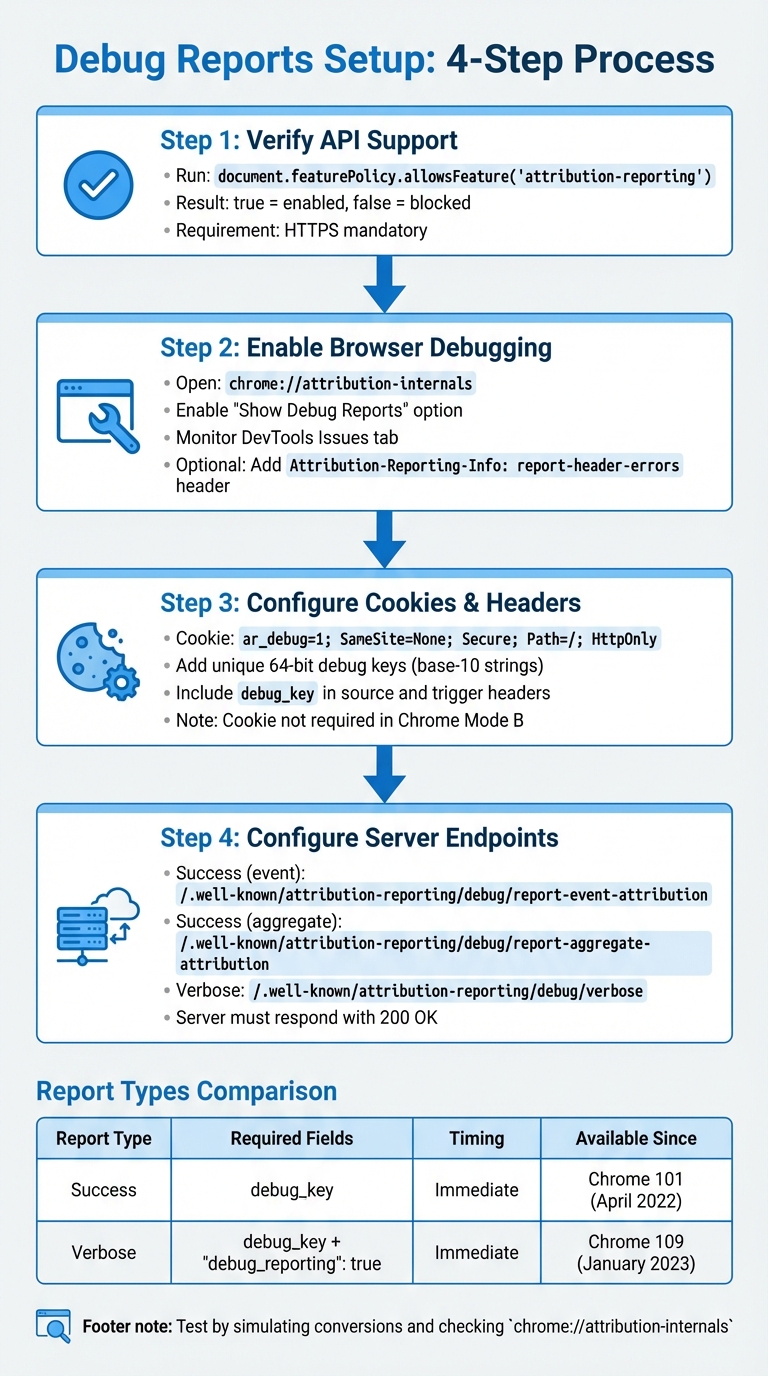
Debug Reports Setup Guide for Attribution APIs – 4-Step Implementation Process
Introduction to the Attribution Reporting API
sbb-itb-2ec70df
Getting Ready to Set Up Debug Reports
Before diving into detailed configurations, ensure your environment is ready by verifying API support, enabling browser debugging, and setting up necessary cookies. These steps are essential for troubleshooting attribution effectively.
Check if Your Attribution API is Supported
Start by checking if the Attribution Reporting API is supported in your browser. Run the following JavaScript code:
document.featurePolicy.allowsFeature('attribution-reporting').
If the result is true, the API is enabled. A false result means the API might be blocked by a Permissions-Policy header set by the publisher or advertiser.
Remember, this API only works in secure contexts – HTTPS is mandatory. Using HTTP will prevent the API from functioning and may trigger errors in the browser’s DevTools Issues tab. Common errors include insecure contexts, JSON parsing issues, or misconfigured headers.
Turn On Browser Debugging Features
To monitor API activity in real time, open chrome://attribution-internals in Chrome. This tool lets you track events and detect errors instantly through the DevTools Issues tab. Be sure to manually enable the "Show Debug Reports" option within the relevant tabs.
If you encounter an invalid header error, use a header validator tool to identify the problem. Alternatively, you can enable immediate header error reporting by including the following header in your server’s response:
Attribution-Reporting-Info: report-header-errors.
Configure Required Cookies
For transitional debug reports, you need to set specific cookies. Ensure the ar_debug=1 cookie is present on your reporting origin during both source and trigger registration. Use this configuration:
Set-Cookie: ar_debug=1; SameSite=None; Secure; Path=/; HttpOnly
Note that in Chrome’s Mode B, this debug cookie is not required.
| Prerequisite | Requirement | Notes |
|---|---|---|
| Protocol | HTTPS | Mandatory for all Attribution Reporting API features |
| Cookie | ar_debug=1 |
Required for transitional reports unless using Mode B |
| Browser Tool | chrome://attribution-internals |
Key for verifying report generation and debugging |
| Header Opt-in | report-header-errors |
Included in the Attribution-Reporting-Info header for error tracking |
Core Elements of Debug Report Setup
Setting up debug keys, success debug reports, and verbose debug reports is essential for tracking and troubleshooting attribution data effectively.
Create Unique Debug Keys
To link cookie-based and attribution reports, assign unique 64-bit debug keys as base-10 strings in your source and trigger headers. Include the debug_key field in both the Attribution-Reporting-Register-Source and Attribution-Reporting-Register-Trigger headers. This allows the browser to map legacy data to attribution reports seamlessly.
Make sure the source-side debug key is different from the source_event_id to ensure each report is distinguishable. Pair the source-side debug key with its corresponding cookie ID and timestamp, and follow the same approach for the trigger-side key. This simplifies the process of matching legacy reports with attribution data.
Configure Success Debug Reports
Success debug reports confirm that an attribution report has been successfully generated. These reports are sent immediately to your reporting origin and have been available since Chrome 101 (April 2022). They are triggered automatically if the debug cookie and debug keys are present, eliminating the need for the debug_reporting field in your headers.
These reports are identical to standard attribution reports but include additional fields: source_debug_key and trigger_debug_key.
Set up the following endpoints for success debug reports:
- Event-level reports:
https://<reporting-origin>/.well-known/attribution-reporting/debug/report-event-attribution - Aggregatable reports:
https://<reporting-origin>/.well-known/attribution-reporting/debug/report-aggregate-attribution
Unlike standard attribution reports, which are delayed, success debug reports are delivered immediately after the attribution event is triggered.
Set Up Verbose Debug Reports
Verbose debug reports provide detailed feedback on why a report wasn’t generated. Common reasons include missing sources, insufficient budget, or header parsing errors. Introduced in Chrome 109, verbose debug reports require both a debug_key and "debug_reporting": true in your headers.
To receive these reports, configure this endpoint:
https://{REPORTING_ORIGIN}/.well-known/attribution-reporting/debug/verbose
Verbose debug reports are sent immediately when a registration fails. Each request can include up to two reports (one for event-level and one for aggregatable), formatted as a JSON array.
To validate your setup, you can simulate a conversion on a site without any prior ad click or view. This should generate a trigger-no-matching-source verbose report. Open the "Verbose debug reports" tab in chrome://attribution-internals to verify that the reports are being created locally before checking your server logs.
Debug Report Overview
Here’s a quick comparison of the key debug report types:
| Report Type | Required Header Fields | Delivery Timing | Endpoint Path |
|---|---|---|---|
| Success Debug Report | debug_key |
Immediate | /debug/report-event-attribution or /debug/report-aggregate-attribution |
| Verbose Debug Report | debug_key and "debug_reporting": true |
Immediate | /debug/verbose |
| Standard Attribution Report | debug_key (optional) |
Delayed (scheduled windows) | Standard reporting endpoints |
Creating and Testing Debug Report Endpoints
Once you’ve set up debug keys and report types, the next step is building server endpoints to handle and verify debug data.
Set Up Debug Report Endpoints
Your server needs to be configured to accept POST requests at specific .well-known endpoints. Here’s how to set it up:
- For event-level success reports, use:
/.well-known/attribution-reporting/debug/report-event-attribution - For aggregatable success reports, use:
/.well-known/attribution-reporting/debug/report-aggregate-attribution - For verbose reports (both event-level and aggregatable failures), direct them to a single endpoint:
/.well-known/attribution-reporting/debug/verbose
When your server receives these POST requests, ensure it responds with a 200 OK status. Success reports will arrive as JSON objects containing debug keys, while verbose reports come as a JSON array – this is because a single request might include multiple reports, such as one for event-level and another for aggregatable data.
To handle header parsing issues efficiently, include the following response header:
Attribution-Reporting-Info: report-header-errors
Once your endpoints are ready, you can move on to testing the reporting flow with actual events.
Test Debug Reports with Live Events
To verify your setup, open chrome://attribution-internals in Chrome. Make sure to enable the "Show Debug Reports" checkbox in the Event-Level, Aggregatable, and Verbose tabs. This allows you to view reports generated locally before they are sent to your server.
Here’s how to test:
- Trigger a conversion without an ad click or view: This will generate a
trigger-no-matching-sourceverbose report immediately. - Test success reports: Perform a standard attribution flow by triggering both a source event (like an ad click) and a trigger event (like a conversion). Check your server logs to confirm that reports are delivered without delay.
For success reports, double-check that the source_debug_key and trigger_debug_key are included. This ensures the mapping between cookie-based and API-based conversions is functioning correctly. Use your server logs and the Network tab in Chrome DevTools to confirm that POST requests are routed to the correct endpoints.
Conclusion and Key Takeaways
Now that we’ve covered setup and testing, let’s pull together the main points. Debug reports are a crucial tool for assessing the performance of your attribution API and understanding data discrepancies compared to cookie-based tracking. By using both success debug reports and verbose debug reports, you can pinpoint where data losses occur and figure out why certain reports fail to generate.
The use of unique 64-bit debug keys is key to effectively mapping legacy data with API-generated reports. This step is essential for comparing the two datasets accurately. Debug reports have been a feature in recent Chrome releases, offering unaltered versions of attribution data alongside API reports during testing. This allows you to identify integration bugs early, ensuring they don’t disrupt your campaign tracking. As noted in the Privacy Sandbox Integration Guide:
Setting a debug key will allow you to receive an unaltered report of a source or trigger event along with the reports generated by the Attribution Reporting API. You can use debug keys to compare reports and find bugs during integration.
Additionally, the chrome://attribution-internals tool is invaluable for real-time monitoring of report generation. Pay close attention to verbose error messages like trigger-no-matching-source, as these provide specific clues to help you quickly resolve configuration problems.
FAQs
Why am I not seeing any debug reports in Chrome?
If you’re not seeing debug reports in Chrome, it could be due to a few common issues: incorrect configuration, missing setup steps, or insufficient permissions. Start by confirming that your reporting origin and the Attribution API are set up correctly. Also, make sure your environment supports debug reports and adheres to the required Privacy Sandbox setup guidelines. If the problem continues, double-check your client measurement API configuration and review your environment settings to identify any potential misconfigurations.
Do I need the ar_debug=1 cookie or can I skip it?
If you’re using Chrome version M132 or later, there’s good news: you no longer need to set the ar_debug=1 cookie. Starting with M132, Google has eliminated this requirement, making debug reporting independent of the cookie. However, if you’re working with older versions of Chrome, the cookie might still be required for proper debug reporting.
What’s the fastest way to diagnose a missing attribution report?
The fastest way to pinpoint issues with missing attribution reports is by using debug reports. These reports are incredibly useful for spotting problems such as unrecorded browser events or network errors. By enabling verbose debug reports, you can dive deeper into the details, comparing trigger events with registered triggers. This comparison often highlights discrepancies, helping you zero in on the cause of the missing data. It’s a straightforward way to uncover and address the root of the problem.